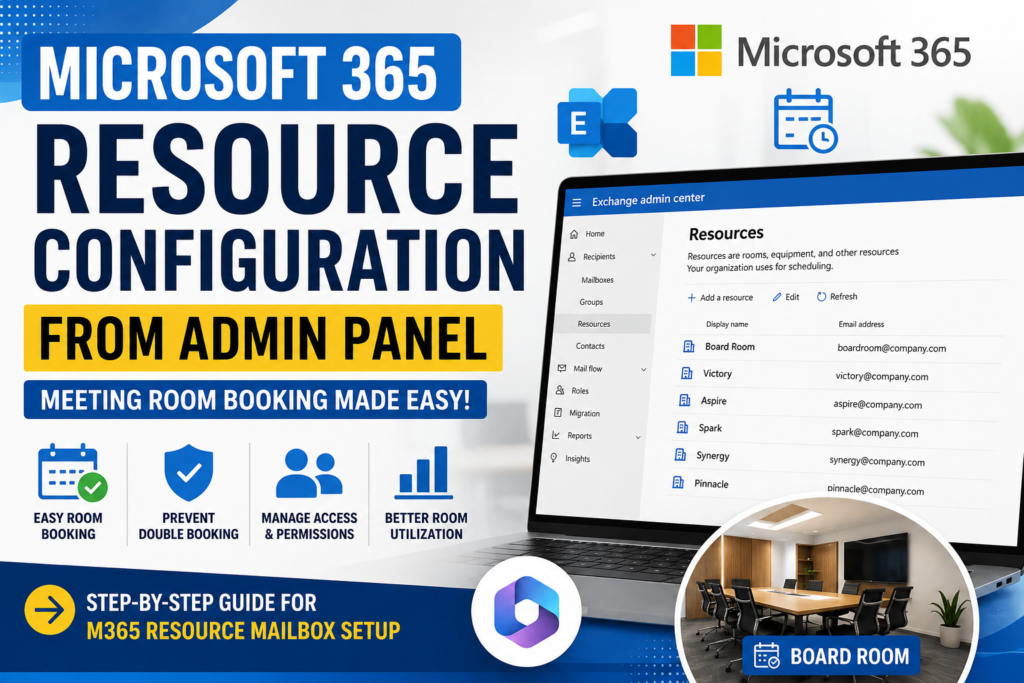
Microsoft 365 Resource Configuration from Admin Panel
Complete Guide for Meeting Room Booking and Resource Management
Modern workplaces depend heavily on efficient meeting room management. In many organizations, employees still coordinate conference rooms manually through emails or phone calls, which often leads to double bookings, scheduling conflicts, and wasted time.
This is where Microsoft 365 Resource Configuration becomes extremely useful. Using the Microsoft 365 Admin Panel and Exchange Online, organizations can automate meeting room booking, manage shared resources, and streamline scheduling directly from Outlook Calendar.
In this guide, we will explain how to configure an M365 Resource Mailbox, manage meeting rooms, and implement a professional Microsoft 365 Room Booking System with real-world examples.
What is Microsoft 365 Resource Configuration?
Microsoft 365 Resource Configuration is the process of creating and managing shared resources such as:
- Meeting Rooms
- Conference Halls
- Training Rooms
- Shared Equipment
- Company Vehicles
- Video Conferencing Devices
These resources are configured as Exchange Online Resource Mailboxes. Once configured, users can easily book them directly from Outlook Calendar.
A properly configured Microsoft 365 Meeting Room Booking system can:
- Prevent double booking
- Automatically approve meeting requests
- Restrict access for selected users
- Manage room availability
- Improve workplace productivity
Why Organizations Need an M365 Resource Mailbox
A professionally configured M365 Resource Mailbox helps organizations simplify scheduling operations.
Without proper room management:
- Employees book the same room simultaneously
- Important meetings get delayed
- IT teams receive frequent scheduling complaints
- Room utilization becomes difficult to track
With Microsoft 365 Resource Scheduling, the process becomes automated and centralized.
Real-Time Example of Meeting Room Configuration in M365
Suppose an organization has the following rooms:
| Room Name | Capacity | Purpose |
|---|---|---|
| Board Room | 20 | Management Meetings |
| Victory | 10 | Team Collaboration |
| Aspire | 8 | HR Interviews |
| Spark | 6 | Internal Discussions |
| Synergy | 12 | Client Meetings |
| Pinnacle | 15 | Training Sessions |
The company wants to implement:
- Automatic room booking
- Outlook Room Finder integration
- Conflict prevention
- Restricted access for Board Room
- Centralized room management
This can be achieved using Exchange Admin Center Resource Setup.
Step 1: Login to Microsoft 365 Admin Center
Open the official Microsoft portal:
Login using administrator credentials.
The M365 Admin Panel Configuration allows administrators to manage users, licenses, mailboxes, and resources from a single dashboard.
Step 2: Open Exchange Admin Center
Navigate to:
- Admin Centers
- Exchange
Or directly access:
The Exchange Admin Center Resource Setup section is used to configure all room mailboxes and resource policies.
Step 3: Create a Room Mailbox
Inside Exchange Admin Center:
Navigate to:
Recipients → Resources
Click:
Add a Resource → Room
This starts the Room Mailbox Setup process.
Step 4: Configure Resource Details
Example configuration for Board Room:
| Field | Example Value |
|---|---|
| Name | Board Room |
| Email Address | boardroom@company.com |
| Capacity | 20 |
| Location | 3rd Floor |
| Phone | Optional |
Repeat the same process for Victory, Aspire, Spark, Synergy, and Pinnacle.
This creates an Exchange Online Room Mailbox for each meeting space.
Step 5: Configure Microsoft 365 Resource Scheduling
After creating the room mailbox, open its settings and configure booking policies.
Important settings include:
| Setting | Purpose |
|---|---|
| Auto Accept | Automatically approve meetings |
| Allow Conflicts | Prevent double booking |
| Booking Window | Allow advance booking |
| Maximum Duration | Restrict meeting length |
| Recurring Meetings | Enable recurring schedules |
A proper Microsoft 365 Resource Scheduling setup ensures that rooms remain available only when free.
Prevent Double Booking in Outlook Rooms
One of the biggest benefits of Outlook Resource Booking is automatic conflict management.
If a room is already reserved for a specific time slot, Microsoft 365 automatically rejects overlapping requests.
This feature improves meeting discipline and reduces scheduling confusion.
Step 6: Restrict Board Room Access
In many organizations, premium conference rooms are reserved for senior management.
For example, the Board Room should only be available for:
This can be configured using Exchange Online Calendar Processing policies.
PowerShell Configuration Example
Connect to Exchange Online PowerShell:
Connect-ExchangeOnlineApply booking restrictions:
Set-CalendarProcessing "Board Room" `
-AutomateProcessing AutoAccept `
-AllBookInPolicy $false `
-BookInPolicy directors@company.com,management@company.com
This configuration ensures:
- Automatic meeting approval
- Restricted booking access
- Secure management scheduling
Outlook Calendar Room Booking Experience
After successful Microsoft 365 Conference Room Setup, users can book rooms directly from Outlook.
User Booking Process
- Open Outlook Calendar
- Click New Meeting
- Select attendees
- Open Room Finder
- Choose available room
- Send invitation
The Outlook Calendar Room Booking system automatically processes the request.
Benefits of Microsoft 365 Room Booking System
Implementing a Microsoft 365 Room Booking System provides several operational advantages.
1. Automated Scheduling
No manual coordination is required.
2. Better Resource Utilization
Unused rooms can be tracked efficiently.
3. Reduced Conflicts
The system automatically prevents duplicate bookings.
4. Centralized Management
IT administrators manage all resources from one panel.
5. Improved User Experience
Employees can book rooms directly from Outlook.
Create a Room List in Exchange Online
A Room List helps users easily locate available meeting rooms.
PowerShell Example
Create Room List:
New-DistributionGroup `
-Name "Mumbai Meeting Rooms" `
-RoomList
Add rooms:
Add-DistributionGroupMember `
-Identity "Mumbai Meeting Rooms" `
-Member boardroom@company.com
This improves the M365 Room Finder experience.
Best Practices for Resource Mailbox Permissions
Proper Resource Mailbox Permissions help organizations maintain scheduling discipline.
Recommended practices:
- Restrict executive rooms
- Limit booking duration
- Disable external bookings if unnecessary
- Configure approval workflows
- Use meaningful naming conventions
Suggested Naming Structure
| Room Name | Email Address |
|---|---|
| Board Room | boardroom@company.com |
| Victory | victory@company.com |
| Aspire | aspire@company.com |
| Spark | spark@company.com |
| Synergy | synergy@company.com |
| Pinnacle | pinnacle@company.com |
This creates a professional Microsoft 365 Resource Calendar Management structure.
Common Issues in Exchange Online Resource Mailbox Configuration
Room Not Visible in Outlook
Cause:
Room not added to Room List.
Solution:
Add mailbox to Room List group.
Auto-Rejecting All Meetings
Cause:
Incorrect booking policy.
Solution:
Review Exchange Online Calendar Processing settings.
Users Unable to Book Room
Cause:
Restricted booking permissions.
Solution:
Verify Resource Booking Policy configuration.